
Presentation editor
Build a deck and download it as PPTX for PowerPoint.
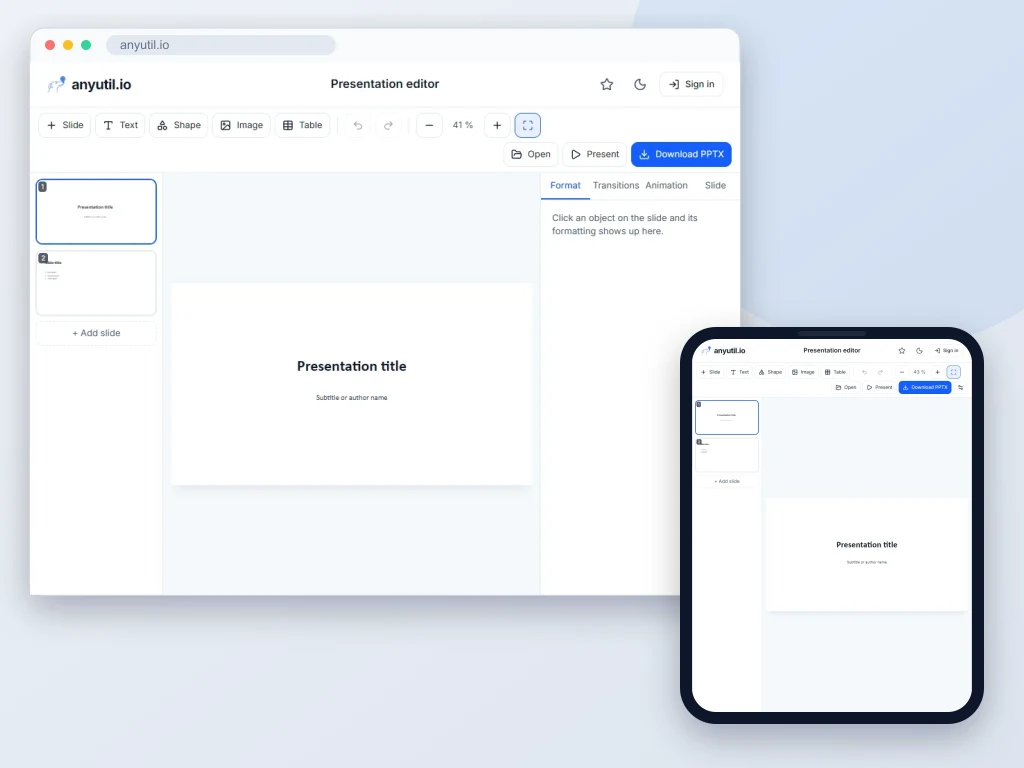
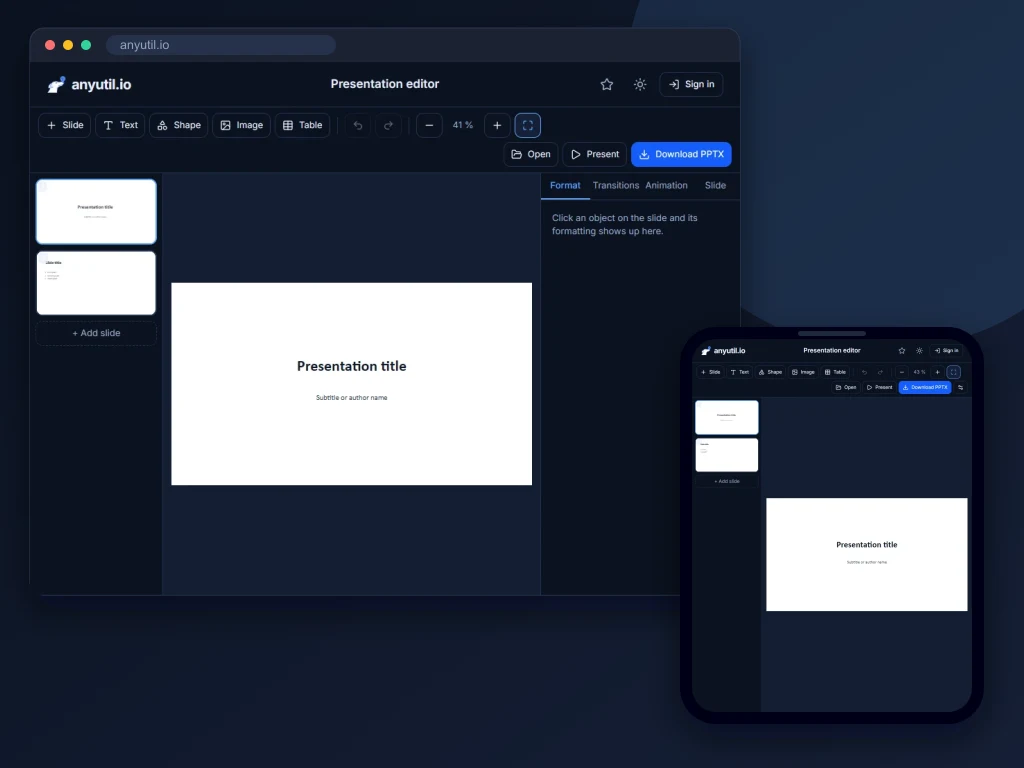
Open full screen
Runs in your browser, your files stay on your computer.
- Runs right in your browser
- Free, no sign-up
More about Presentation editor
How to build a presentation in the browser
Open the editor with the button above and start from scratch, from a template, or by opening a finished PPTX file. Add slides in the slide strip and pick a layout for each. Text, shapes, images, tables, charts, icons and QR codes come from the tool strip; grab an object with the mouse and resize it by its handles. Every command is in the menus at the top or a search away (Ctrl + K). Download the finished work as a PPTX that opens in PowerPoint, LibreOffice Impress and Google Slides.
- Slide transitions: fade, push, wipe, cover, split, zoom, dissolve or cut, with a direction and a duration. One button applies them to the whole deck, and a slide can also advance on its own after a set time.
- Object animation: every box can make its own entrance, on click, with the previous one or after it. Change the order in the Animation panel and it plays exactly as it is written into the PPTX.
- Text formatting: bold, italic, underline, strikethrough, colour, highlight and links apply to the selected words. Font, size, alignment, bullets with five levels, line spacing and the space before and after a paragraph are set per paragraph, several at once if you like. Shift + Enter breaks the line without starting a new paragraph.
- Text that does not fit: the editor marks an overflowing box and offers to shrink the text or let the box grow with it, just like PowerPoint. Where the Office fonts are missing (Mac, iPhone, Android), Calibri, Arial, Times New Roman and Courier New are replaced by fonts with the same character widths, so the text wraps exactly as on a computer with Office, on the canvas as well as in PNG and PDF.
- Working with objects: select several by dragging or with Shift, group them, align to the slide or to the selection and distribute, layers, locking, copy and paste, duplicate by dragging with Ctrl, flipping shapes and images, shadows, hyperlinks, and copying formatting with the painter brush.
- Smart guides: while moving and resizing, an object snaps to the edges and centres of the slide and of other objects, and the guides show equal spacing and distance labels. Turn on the grid for a regular pattern; hold Alt to switch snapping off for a moment.
- Charts and icons: column, bar, line, area, pie or donut charts with a data table right in the panel, and a searchable icon library where you pick the colour. Charts go into the PPTX as images.
- Images: crop right on the slide (double-click the image and drag its edges), brightness, contrast, saturation and greyscale, rounded corners, a border and alt text for screen readers. Paste an image from the clipboard or drop a file onto the slide; large photos are scaled down on the way in so the deck does not balloon. Lines can have arrowheads.
- QR codes: turn a link or any text into a QR code in your own colours, with a transparent background and an adjustable damage tolerance if you wish. The code stays editable: change the address and it is redrawn.
- Tables: add or remove rows and columns where the cursor is and give cells their own fill and alignment. Tab moves to the next cell and adds a new row in the last one.
- Templates and project files: eight ready decks (company overview, investor pitch, product launch, project status, training session, school report, photo deck) that come with text, tables, charts and speaker notes. Work in progress can be saved as a .json project file and reopened later without losing anything.
- Export: PPTX for PowerPoint, a PDF with one slide per page, and PNG images of all slides in a ZIP archive, at normal or double resolution, or of the current slide only. Hidden slides are skipped while presenting and left out of the PDF and the images unless you include them.
- Find and replace: Ctrl + F finds and Ctrl + H replaces across text boxes, shapes, tables, charts and speaker notes of the whole deck, optionally matching case or whole words only. Replace one occurrence or all of them at once; the formatting of words stays.
- Slides: in the slide strip and the slide sorter, select several slides at once (with Shift or Ctrl), drag them to a new place, or copy, duplicate, hide or delete them in one go. A slide layout can be reset at any time and the text stays.
- Slides from another deck: pick the slides you want from another PPTX file and insert them in your deck's theme or with their original formatting.
- Presentation check: finds empty slides, missing and repeated titles, leftover placeholder text, too much text on a slide, small type, weak contrast, objects off the slide, images without alt text for screen readers and a reading order that does not match the layout. Every finding has a Go to button.
- Editing on a phone: the tools sit in a bar along the bottom edge, the properties panel slides up from the bottom, two fingers zoom the canvas, holding a finger opens the menu and a double tap starts typing. You can polish a deck on the go.
- Themes: eight sets of colours and fonts. Switching the theme recolours headings and text that carried the old theme colours; your own colours stay.
- Presenting: full screen, with transitions and animations. A laser pointer (L) and a pen in six colours (D) draw straight onto the slide, the screen can go black (B), the overview of all slides (G) jumps anywhere, and the show can loop.
- Presenter view in a second window: Alt + F5, or Presenter view next to the Present button, opens a window of its own with the current and the next slide, the notes in an adjustable size, a timer you can pause, a clock and a slide counter. Keep that window on your screen while the audience sees only the slides.
- Opening an existing deck: a PPTX file can be opened and edited. Text including the formatting of individual words, images, shapes, tables, backgrounds, the footer, transitions and animations all load.
Work in progress is saved continuously in your browser's storage, so it survives reloading the page and closing the tab. It does not reopen on its own: the start screen offers your unfinished decks to continue, and inside the editor you reach them from the File menu. When storage space runs low, the editor warns you before any work could be lost. The deck is not uploaded to our server unless you save it to your account or share it by link yourself.
Keyboard shortcuts
- Ctrl + Z undo, Ctrl + Shift + Z or Ctrl + Y redo
- Ctrl + S saves to your account, Ctrl + Shift + S downloads the PPTX, Ctrl + P downloads a PDF, Ctrl + O opens a PPTX
- Ctrl + K searches commands, Ctrl + M adds a slide, Ctrl + D duplicates an object or a slide, F10 or Alt opens the menus
- F5 presents from the start, Shift + F5 from the current slide, Alt + F5 with presenter view in a second window
- Ctrl + F finds, Ctrl + H replaces, F3 and Shift + F3 go to the next and the previous occurrence
- Ctrl + B, I and U toggle the type styles, Ctrl + Shift + > and < make the type bigger and smaller, Ctrl + L, E, R and J align, Ctrl + Shift + K adds a link
- Ctrl + Shift + C and Ctrl + Shift + V copy and paste formatting
- While typing, Shift + Enter starts a new line in the paragraph, Tab and Shift + Tab indent and outdent a bullet, Esc stops typing
- Enter types into the selected box, Delete removes an object, arrows nudge by a pixel and by ten with Shift, Esc clears the selection
- Ctrl + C, X and V copy, cut and paste objects, and whole slides in the slide strip; Ctrl + A selects everything on the slide or all slides
- Ctrl + G groups the selection, Ctrl + Shift + G ungroups, Ctrl + click picks one object inside a group, Ctrl + up and down arrow move an object one layer, with Shift all the way to the front or back
- PgUp and PgDn move between slides, Alt + up and down arrow (left and right in the horizontal strip) move a slide, Ctrl + ' toggles the grid
- Ctrl + + and Ctrl + - zoom in and out, Ctrl + 0 fits the whole slide, Ctrl + mouse wheel zooms the canvas
- While dragging, Shift keeps the aspect ratio (an image keeps it from the corners anyway), Ctrl resizes from the centre, Alt turns off snapping, Ctrl drags a copy and Shift + click adds an object to the selection
- While presenting, P opens the presenter window, N the notes, L the laser pointer, D the pen, B and W a black and a white screen, G the slide overview, a number and Enter jump to that slide, the space bar advances through the animation steps and on a phone a swipe turns the slides
On a Mac, use Cmd instead of Ctrl.
Frequently asked questions
Will the result open in PowerPoint?
Yes. The downloaded file is an ordinary PPTX in the Office Open XML format, with 16:9 slides, the theme, the notes and the embedded images. Text, tables, links, transitions and animations stay editable; charts, icons and QR codes are written as images.
Are the slides uploaded to a server?
Not unless you want them to be. The editor runs entirely in your browser, work in progress is kept only in its storage and the file is assembled at the moment you download. The deck goes to a server only when you save it to your account or share it by link. So you can prepare a deck full of sensitive numbers even on a machine where uploading is not allowed.
Can I have two type sizes in one box?
Yes, every paragraph keeps its own font, size, alignment and bullets. Inside a paragraph you can make single words bold, italic, underlined, struck through, coloured or highlighted and turn them into a link. A different font or size in the middle of a sentence is not offered; use another paragraph or a separate text box for that.
Does it do animations and slide transitions?
Yes. A slide can have a transition with a direction and a duration, and every object its own entrance. Both play while presenting and are written into the downloaded PPTX, so they work in PowerPoint too. Motion paths and exit effects are not supported yet.
How do I present with notes on a second monitor?
Start presenter view with Alt + F5 or from the menu next to the Present button. A second window opens with the current and the next slide, the notes, a timer and a clock; keep it on your laptop and move the window with the show to the projector, where the F key makes it full screen. Either window takes the controls.
What happens to a deck I open from PPTX?
Text with the formatting of its paragraphs and individual words, images, shapes, tables, colours, backgrounds, the footer, transitions and object entrances all load. Font and size inside a paragraph are unified to the prevailing ones, and charts and SmartArt diagrams do not load. A 4:3 deck fits onto the canvas in full. The original file is left untouched, the editor works on a copy in memory.
How large can the images be?
Photos straight from a phone or a camera are fine. On the way in they are scaled down to at most 2560 pixels on the longer side, which stays sharp even on a big screen, and the transparency of PNG images is kept. Work in progress is stored in the browser, every image only once, and there is usually room for hundreds of megabytes. When space runs low, the editor tells you so you can download your work or save it to your account.